Settings
 Fast Delivery
 Free Shipping
 Incoterms
 Payment Types


 Marketplace Product

Control Stepper Motor Using EDP Stepper Component - Visuino
2026-04-10 | By Ron Cutts
License: GNU Lesser General Public License Microcontrollers Motors Stepper Arduino ESP32
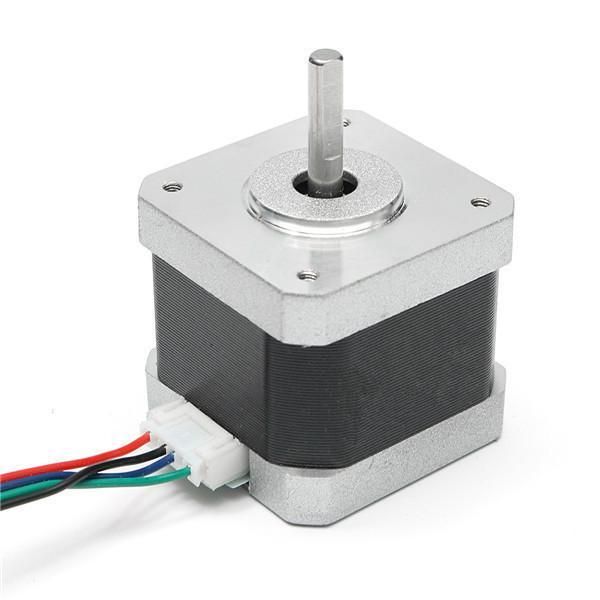
In this tutorial, we are going to control a stepper motor Nema 17 by using a 3rd Party EDP stepper component in Visuino.
The EDP stepper component was created by Jim Ryan. You can read more about this component on his Patreon page, where you can also support his work.
Learn more about Visuino: What is Visuino
What You Will Need
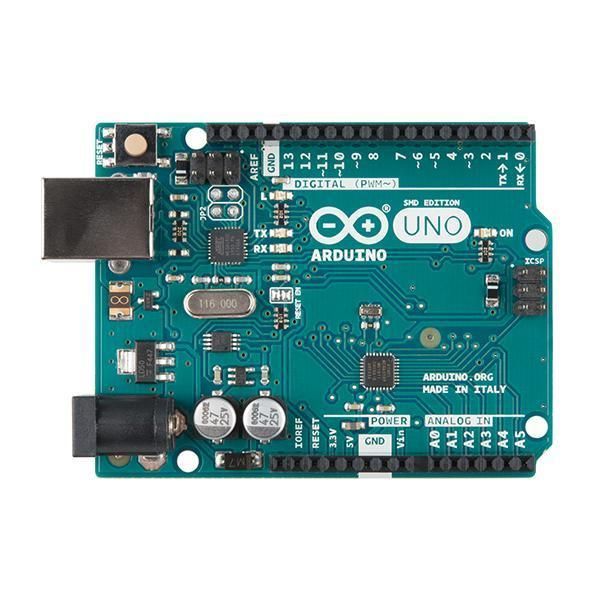
Arduino UNO (Or any other Arduino)
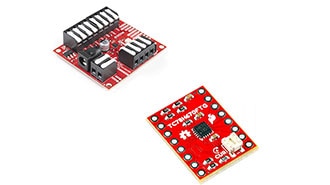
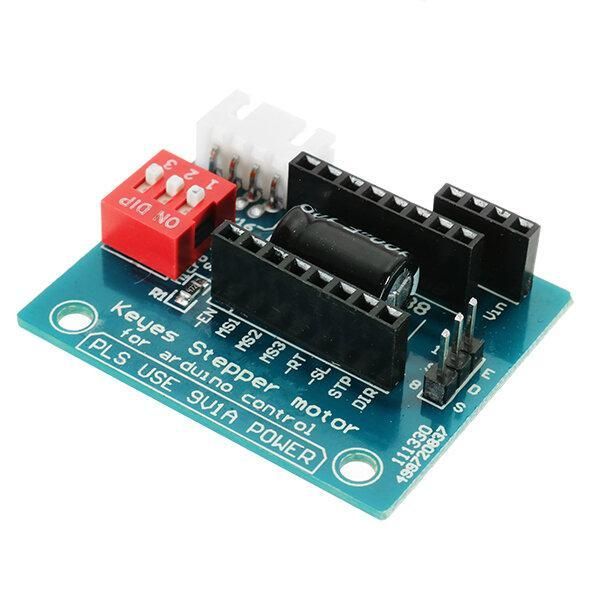
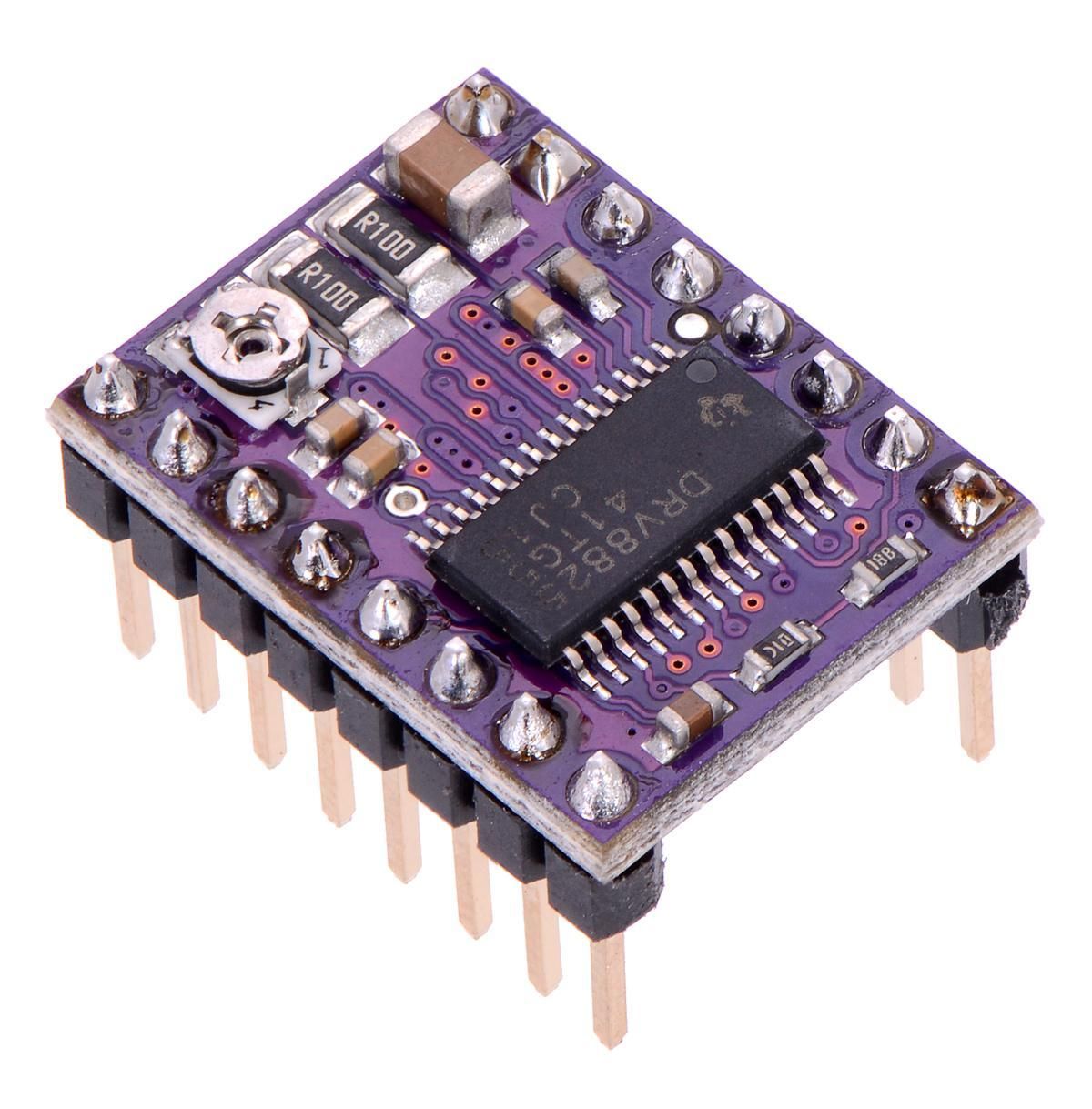
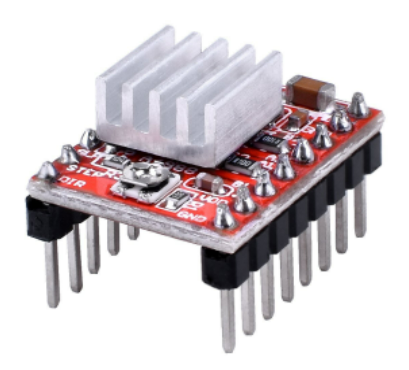
DRV8825/A4988 Stepper Driver Expansion Module
Visuino software: Download here
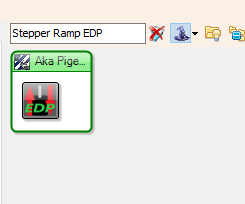
Install Stepper Ramp EDP component. Download here
The Circuit
Arduino Digital Pin 2 will be used for Steps
Arduino Digital Pin 3 will be used for Motor Direction
Optional - Arduino Digital Pin 4 can be used for driver pin Enable
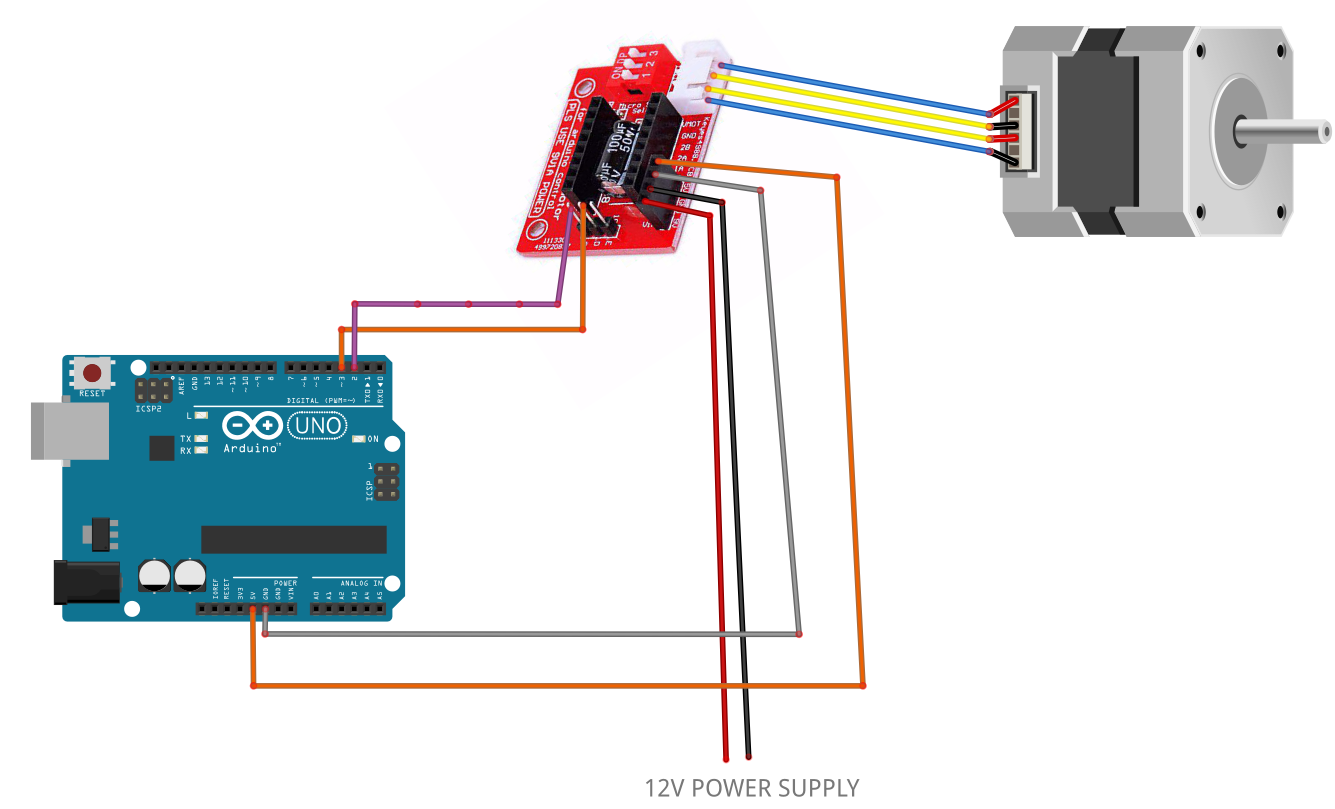
If using a Stepper Motor Driver Shield:
Connect the Motor Shield GND pin to the Arduino negative pin [GND]
Connect the Motor Shield [5V] pin to the Arduino positive pin [5V]
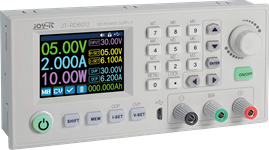
Connect the Motor Shield GND pin to the Power Supply negative pin [GND]
Connect Motor Shield [9V] pin to Power Supply positive pin [+]
Connect the Motor Shield pin[S] to the Arduino digital pin [2]
Connect the Motor Shield pin[D] to the Arduino digital pin [3]
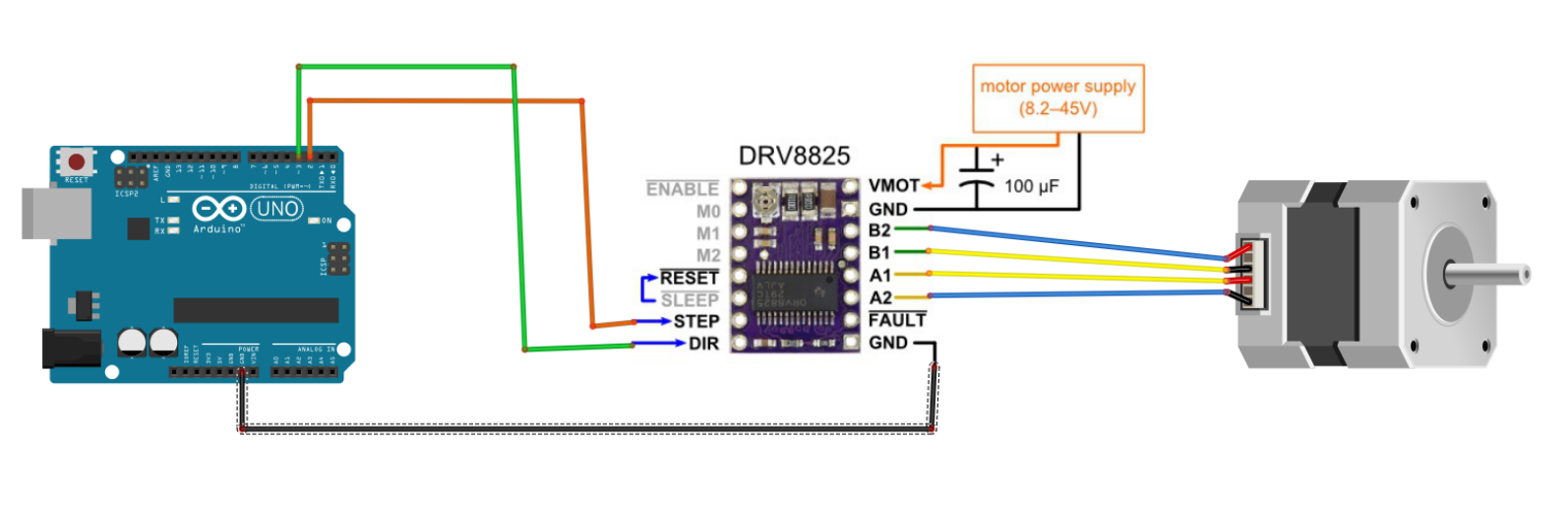
Connect the stepper motor as shown in the picture.
If using a Stepper Motor Driver 8825:
Connect the DRV8825 GND pin to the Arduino negative pin [GND]
Connect the DRV8825 DIR pin to Arduino digital pin [3]
Connect the DRV8825 STEP pin to Arduino digital pin [2]
Connect the Power Supply for the motor to the DRV8825 VMOT and GND
Connect the Capacitor across VMOT and GND
Connect the stepper motor as shown in the picture.
Note: If you plan to use Pin for Enable, then connect it to Arduino digital pin [4] or any other free digital pin
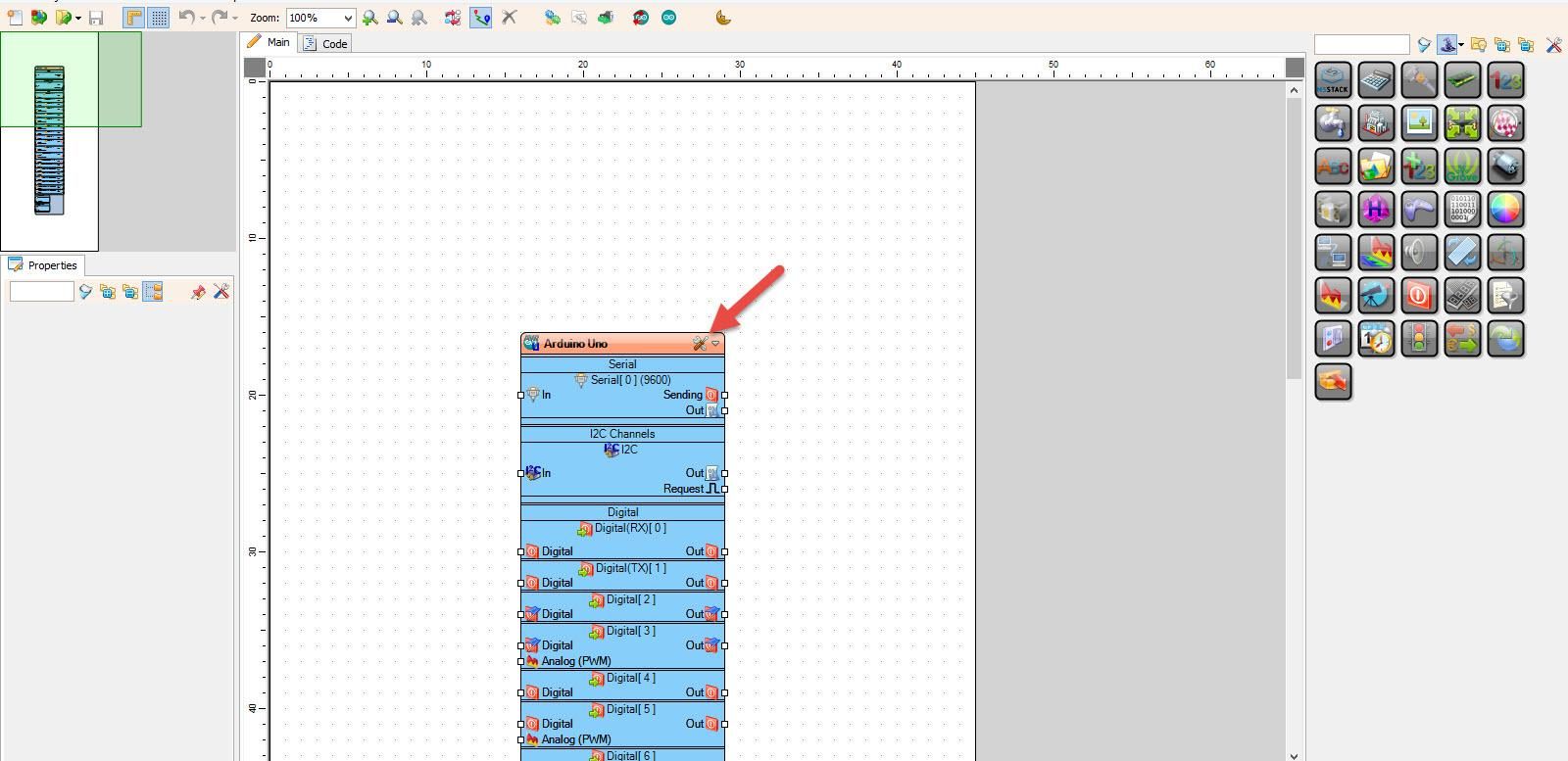
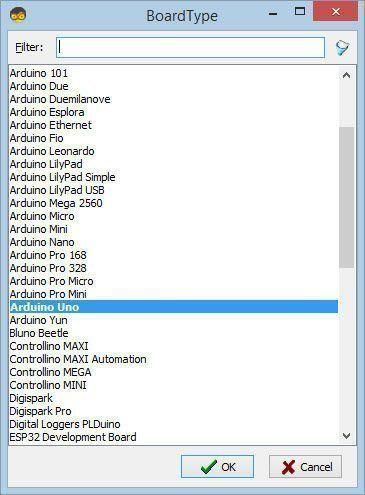
Start Visuino, and Select the Arduino UNO Board Type
Start Visuino as shown in the first picture. Click on the "Tools" button on the Arduino component (Picture 1) in Visuino. When the dialog appears, select "Arduino UNO" as shown in Picture 2
In Visuino, Add Components
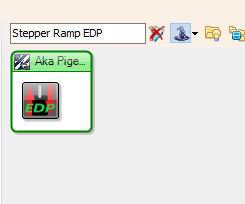
Add "Stepper Ramp EDP" component
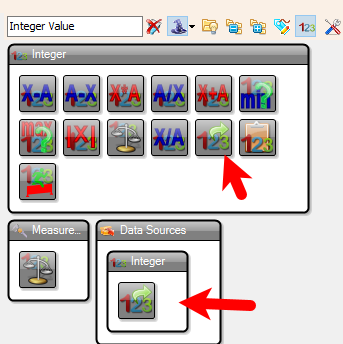
Add 3X "Integer Value" component
In Visuino Set Components
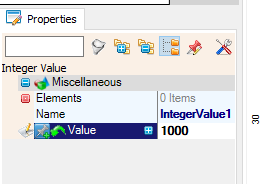
Select "IntegerValue1" and in the properties window under "Value" set the Speed of the motor. In our case, we will use 1000
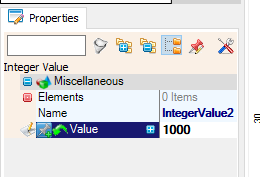
Select "IntegerValue2" and in the properties window under "Value" set the Acceleration Speed & Deceleration Speed of the motor, so-called Ramp Up and Ramp Down, where you set how many steps it should accelerate and decelerate. In our case, we will use 1000
Note that if you do not want to use the ramp-up or ramp-down of the stepper motor, then just don't use this step
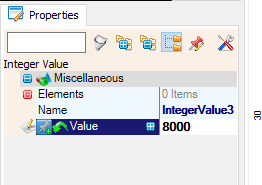
Select "IntegerValue3" and in the properties window under "Value" set the number of steps, in our case, we will use 8000
In Visuino Connect Components
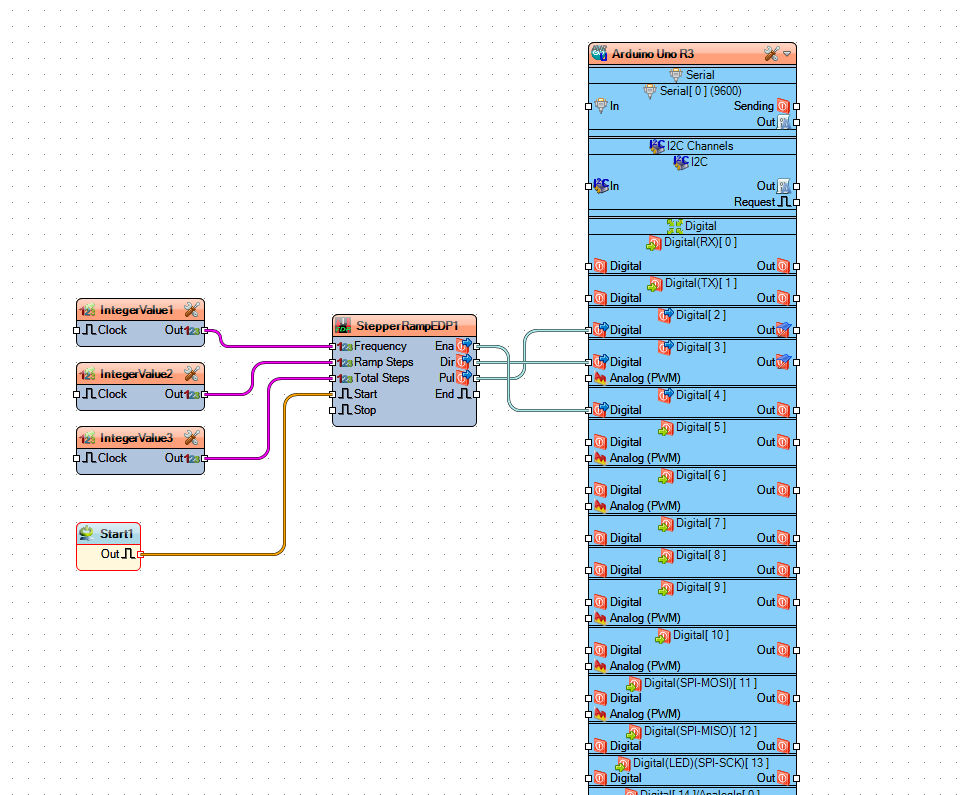
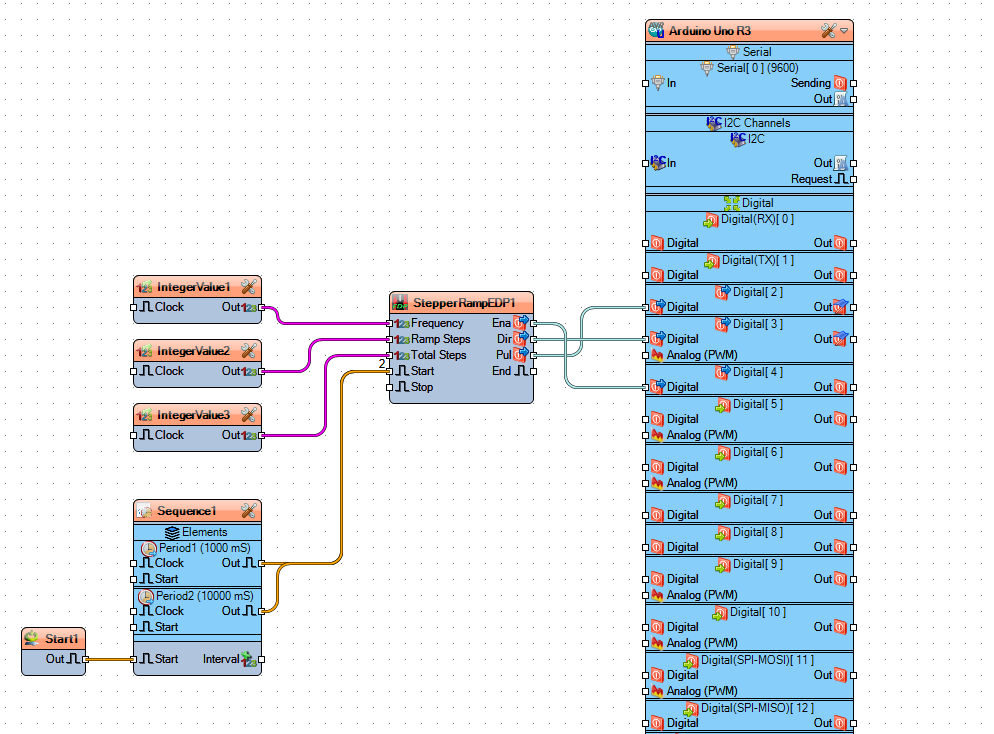
Connect "IntegerValue1" pin [Out] to "StepperRampEDP1" pin [Frequency]
If you plan to use Ramp Up & Ramp Down, then connect "IntegerValue2" pin [Out] to "StepperRampEDP1" pin [Ramp Steps]
Connect "IntegerValue3" pin [Out] to "StepperRampEDP1" pin [Total Steps]
Connect "Start1" to "StepperRampEDP1" pin [Start]
Connect "StepperRampEDP1" pin [Ena] to Arduino digital pin [4]
Connect "StepperRampEDP1" pin [Dir] to Arduino digital pin [3]
Connect "StepperRampEDP1" pin [Pul] to Arduino digital pin [2]
Generate, Compile, and Upload the Code
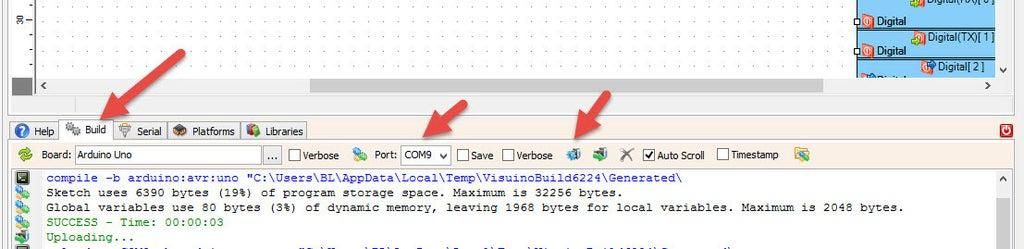
In Visuino, at the bottom, click on the "Build" Tab, make sure the correct port is selected, then click on the "Compile/Build and Upload" button.
To Use Return Type (Dir)
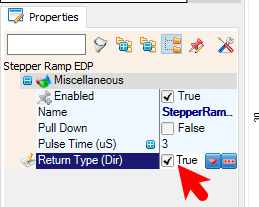
To return the motor position to the start after it finishes the steps, we can select "StepperRampEDP1" and set "Return Type (Dir)" to true. This means that when it finishes the steps, if you start it again by sending the clock pulse to the "Start" pin, it will reverse and do the same number of steps backward.
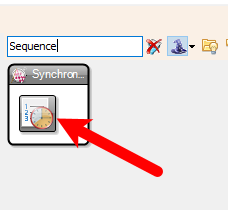
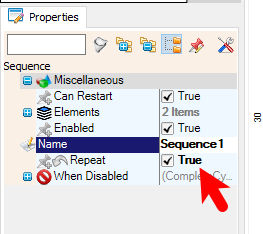
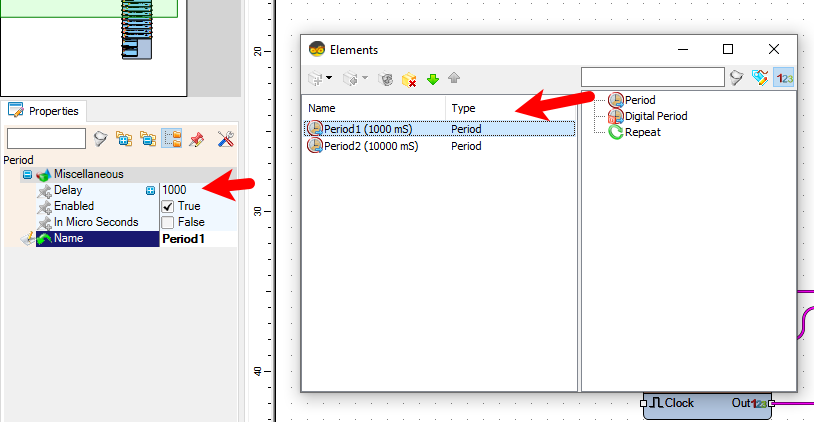
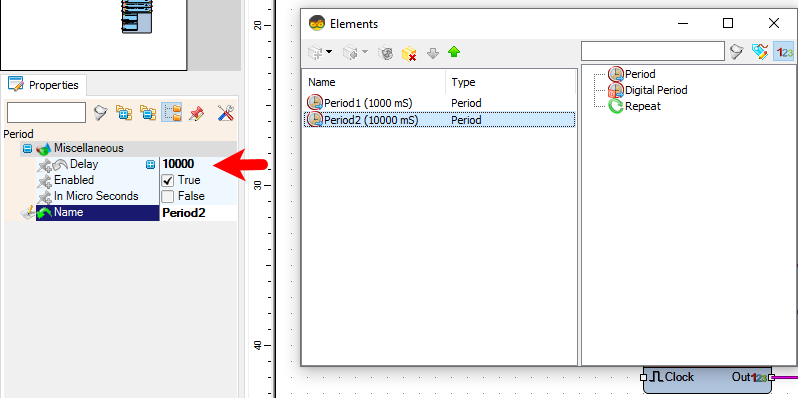
To test this we are going to add the "Sequence" component, in the properties window set "Repeat" to True, double click on the "Sequence1" and in the "Elements" window drag 2X "Period" to the left side, for the first period in the properties window set "Interval" to 1000, this meant that it will be activated after 1s, for the second period set in the properties window "Interval" to 10000, this meant that it will be activated after 10s.
Close the "Elements" window
Connect pins [Out] of both Periods to the "StepperRampEDP1" pin [start]
Connect "Start1" pin [Out] to "Sequence1" pin [start]
Play
Congratulations! You have completed your project with Visuino. Also attached is the Visuino project that I created for this. You can download it here and open it in Visuino: https://www.visuino.eu